
How to Leave an Anonymous Google Review (and What People Can Still See)

Key Takeaway
Learn how to use a custom Google Maps display name for reviews, what remains public, and how to protect your privacy when reviewing a local business.
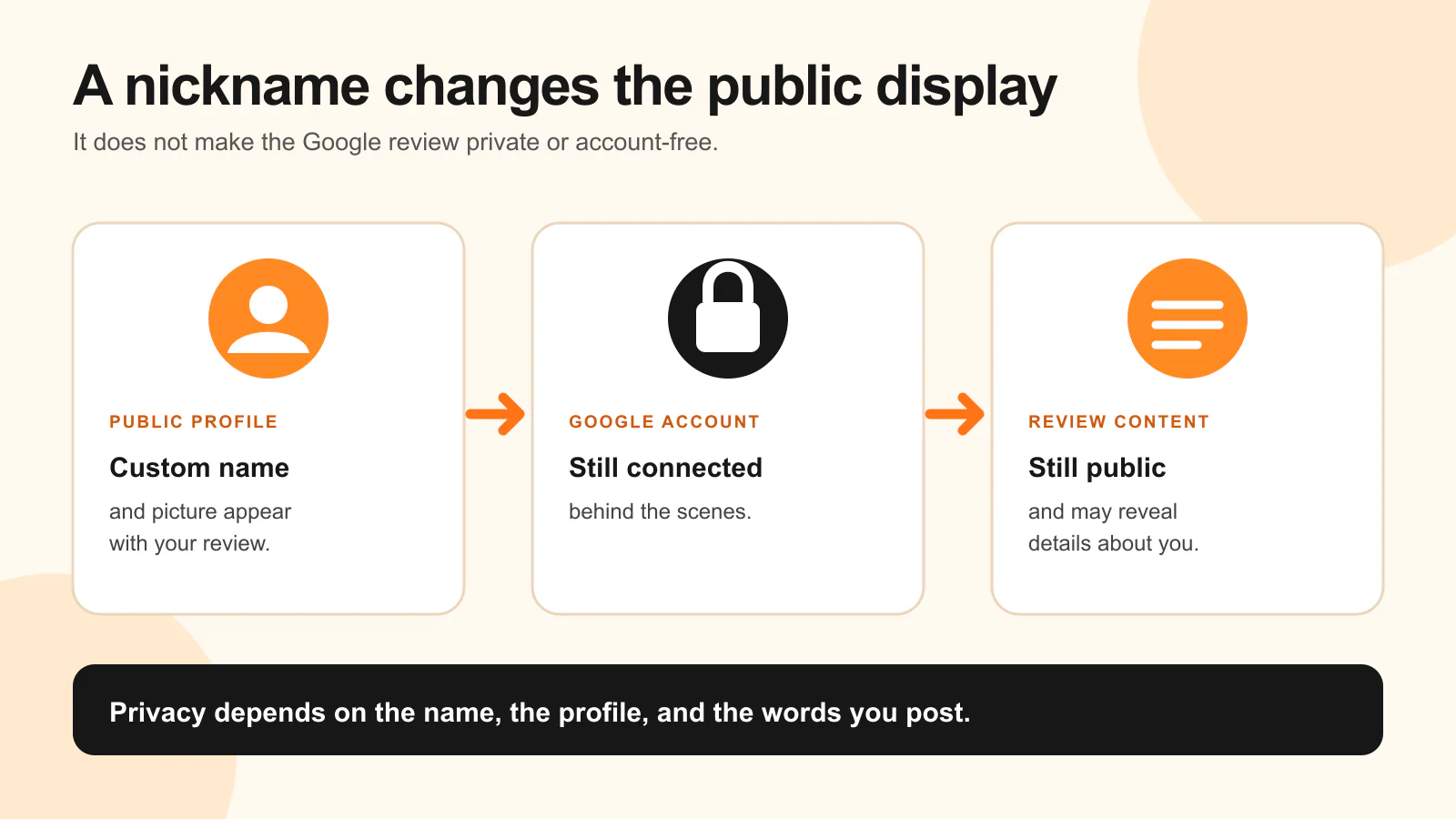
You may want to praise a clinic without telling everyone you visited it. Or you may want to describe a problem with a contractor who has been inside your home without putting your usual name next to the complaint. Google offers a way to use a different public name and picture for reviews, but there is an important limit: the review is still public and remains connected to your Google Account behind the scenes.
That makes the option pseudonymous: other people see an alias, while Google still connects the review to your account. If that level of privacy works for you, set up your public Maps profile before you write the review. Check the name and picture there, and the details in your post.
Can you leave a Google review without showing your real name?
Yes, you can choose a custom display name and picture for your public contributions on Google Maps and Search. Google announced the option in November 2025 and says reviews still remain associated with your Google Account. Google's review help also says reviews are public and that you cannot add an “anonymous review.” Read together, those statements mean you can hide your usual name from the public display, but you cannot post an account-free, private Google review.
The custom name is not a one-review disguise. According to Google's profile help, it can also appear on your public Maps photos, videos, Q&A contributions, photo updates, and media reviews on Search. Your Google Account name and photo continue to be used in other Google products such as Gmail. Look at your whole public contribution profile when deciding whether an alias is enough.
Decide how much you want to reveal before you post
Start with a Google Account you can sign into, the Google Maps app or Maps on a computer, and the business listing you intend to review. You do not need to explain why you visited or bought from the business. You do need to decide whether a public review is the right channel.
Check three things first:
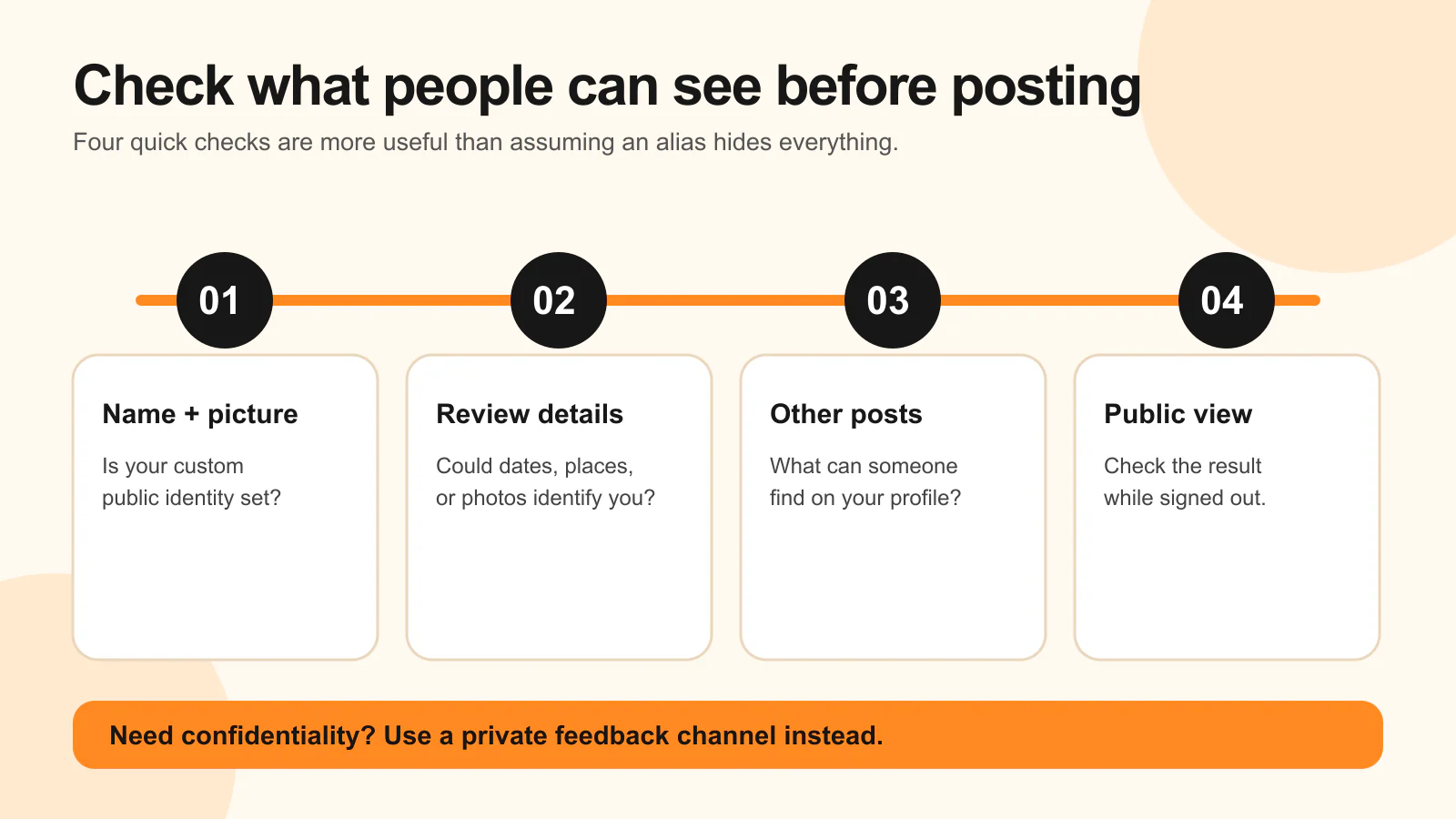
- Your display identity. Choose a name that does not identify you or impersonate someone else. Use a picture that does not show your face, home, workplace, or another identifying detail if those matter to your privacy.
- Your existing public contributions. A nickname on this review may still lead someone to your Maps profile and other contributions. Inspect that profile before posting. Google's content-use policy says reviews can appear across Google services and third-party widgets, with attribution that can link back to your Maps profile.
- The words and images in the review. An alias will not hide a distinctive description. “The only emergency furnace repair on our street last Tuesday” may tell the company who wrote it. A diagnosis, procedure, appointment date, or before-and-after photo may tell other readers more than you intended. These are examples of possible identification, not a guarantee that anyone will recognize you.
If you need the feedback to stay between you and the business, contact it privately instead. If your concern is a safety or care issue, choose a channel suited to that concern. A public Google review cannot provide confidentiality.
Set a custom public name and picture in Google Maps
Google's current Maps instructions for Android and iPhone or iPad describe the same route:
- Open the Google Maps app while signed into the account you will use for the review.
- Tap Contribute, then View your profile.
- Tap Edit profile and select Use a custom display name & picture for posting.
- Enter the public name and choose the picture you want people to see. Tap Confirm.
The check is your profile: does it now show the name and picture you meant to use? If it still shows your usual identity, pause before writing the review. Reopen Edit profile and check the custom display setting.
On a computer, Google's desktop route is Maps menu → Your contributions → Edit profile → Use a custom display name & picture for posting → Next → Confirm. These are Google's documented paths, not a test of every current account or screen. If the option is absent, check the current Google Help page and try the other documented device route. Do not assume that changing your main Google Account name is required for this separate Maps setting.
Write the review, then inspect the public result
Find the correct business and location in Google Maps while signed in. Select Write a review, choose the star rating that reflects your experience, and add text if you want to explain it. Google's review instructions cover that flow and the controls for editing or deleting a review later.
Make the review honest, firsthand, and useful without adding details you would regret making public. “The technician explained the repair options and arrived within the scheduled window” says something about the service. It does not require your address, job date, or a photo of your house. For a clinic, “The front desk explained the next steps clearly” can be useful without naming a condition or treatment. Those are illustrative examples, not accounts of actual visits. Google's review-writing tips also advise avoiding private information.
An alias does not change the rules for a genuine review. Google's contribution policy permits alternative names that are not meant to mislead, while prohibiting impersonation, incentives, and manipulated or fake reviews. Describe your own experience, whether it was good, bad, or mixed.
After submitting, open the review and your public profile to see what is displayed. If privacy is important, check the review in a signed-out browser too. Check the name, picture, review text, photos, and any other public contributions a reader can reach from your profile. If the review has not appeared, you cannot complete that public check yet; return when it is visible. If you spot a revealing detail, use Google's edit or delete control rather than assuming a changed display name will fix the text.
When is a public alias worth using?
An alias can make sense when you want to share a real experience but do not want your usual name attached to a local business relationship. The reason depends on what the review itself reveals:
| Business | Useful detail to share | Detail you may want to leave out |
|---|---|---|
| Home services | Communication and follow-through from a plumber or roofer | Your address, exact visit date, or unusual project details |
| Healthcare | Scheduling, staff communication, or access | A diagnosis, treatment, or appointment details |
| Wellness | How a studio or practitioner handled your questions | Why you sought the service |
| Aesthetic services | The consultation or aftercare instructions | A procedure name or identifiable before-and-after photo |
None of these businesses requires an alias. The practical question is whether a public review, read together with your profile and its details, reveals more than you want. If it does, reduce the detail or choose private feedback.
If you already reviewed the business
You can use Google's Your contributions → Reviews controls to edit or delete a review. You can also change your custom public display setting. But Google's help pages reviewed for this guide do not establish whether every older review will retroactively display a new name. If an existing review is the reason you want privacy, inspect that specific review in public view after changing the setting. Do not rely on an assumption about old posts.
A note for local businesses
Give customers room to decide whether they want to review you publicly, under their usual name, or under a custom display name. Ask for genuine feedback without incentives or pressure, as Google's policy requires. Our Google Business Profile guide covers an ethical review request workflow.
When responding, address the feedback without guessing or revealing who posted it. That matters especially for healthcare providers: HHS documented a case in which a provider disclosed patient information in a reply to a negative online review. If a review appears suspicious or violates policy, our guide to removing a Google review explains the reporting path and its limits.